2. From the Admin view, click the Xero icon located in the upper-right corner of the Hurey header
3. After successfully logging in with your Xero account and granting access to your organization’s data, you will be redirected back to the Hurey page.
4. The Migrate Xero Data One-Click button will now be visible in the upper-right corner of the Hurey interface.
Note: The Migrate Xero Data One-Click button will appear if you are logged in via
Xero and working with a new client or a newly created instance.
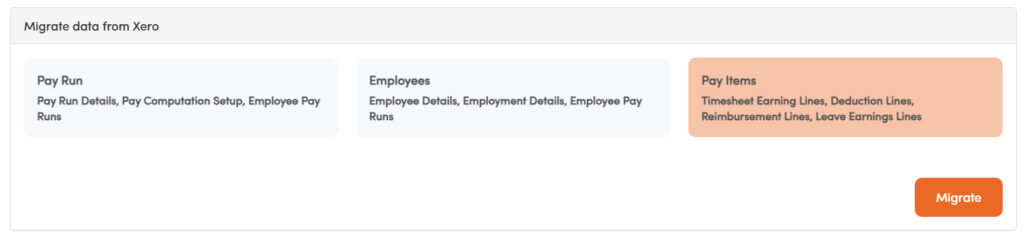
5. Click the Migrate Xero Data One-Click button to open a pop-up with available migration options.
6. Verify the data you wish to sync from Xero to Hurey, then click the Migrate Xero Data One-Click button.
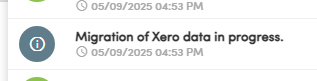
7. You will receive a notification indicating that your selected data is currently being migrated to Hurey
8. Once completed, Hurey will display a message confirming that the Xero Payrun data has been successfully migrated.
The most scalable HR and Payroll app in the Philippines